The bottom line
OpenAI released ChatGPT Images 2.6 on November 4. It makes images 50% faster, does a better job of keeping products and brand details consistent from one edit to the next, and adds animated GIFs and saved reference photos. OpenAI says it’s available in ChatGPT across all subscription tiers; GIF creation is still rolling out.
- GIFs: animate a mascot or turn a product photo into a short loop, then adjust the speed and share it.
- Saved references: save a photo once — a product, a mascot, your storefront — and call it up in later chats with @ and its name.
- Edits hold steady: change a background without your product or logo drifting.
- If you advertise on ChatGPT, bidding changes Monday, November 9.
What’s new in Images 2.6
OpenAI’s Images 2.6 announcement is pitched squarely at marketing work — animating a brand mascot, turning a product shot into an eye-catching loop, and keeping “characters, products, and brand details consistent as you edit.” Here’s what changed in ChatGPT:
Sources: OpenAI announcement, ChatGPT release notes, and the Images in ChatGPT help article.
| Update | What it does | Why it matters for a business |
|---|---|---|
| Faster images | OpenAI says images generate 50% faster than before | Less waiting when you’re trying five versions of a promo |
| Steadier edits | Better at keeping details — like a product or outfit — the same when you change the background | Seasonal versions of one product shot without the label or logo drifting |
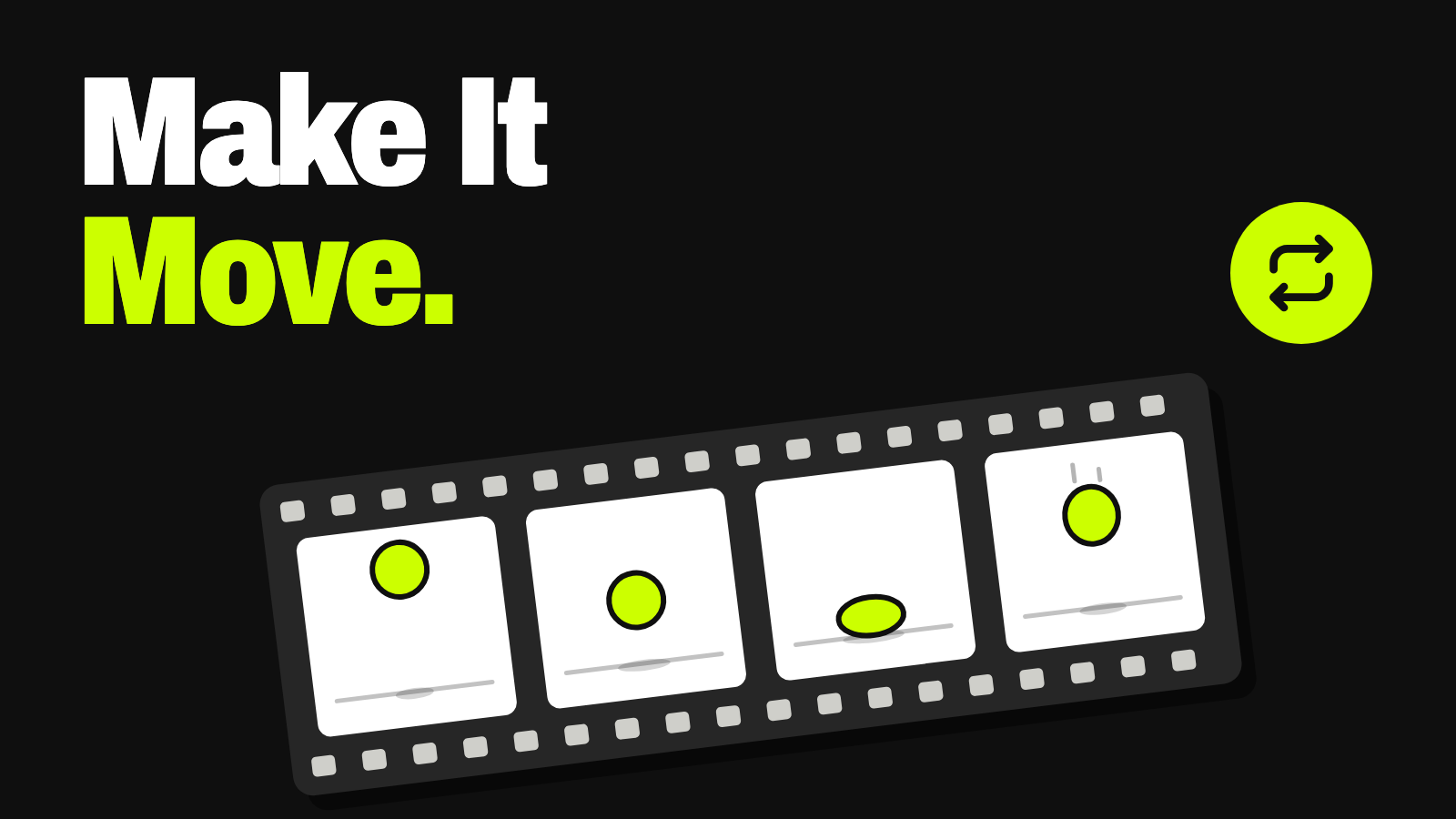
| GIF creation | Ask for a looping GIF and describe what should move, or upload a still image and ask ChatGPT to animate it; adjust the playback speed, save, or share | Motion for email headers, social posts, and ads without video software |
| Saved reference photos | Save an uploaded photo under a name, then type @ and the name in a later chat to use it again | Your product, mascot, or storefront on hand in every new chat |
For developers, the API gets two new image models, image markup for pinpoint edits, and SVG export for graphics that need to scale cleanly on websites and in print. If you’re new to how these tools work, start with our generative AI explainer.
Five ways a small business can use it
- An animated product shot for email. Turn your best product photo into a short loop — steam off a coffee, light across a bottle — for the top of a holiday email.
- A mascot that reacts. If you have a brand character, animate it waving, celebrating a sale, or pointing at a new product for social posts.
- One product, many backdrops. Keep the product the same and swap the scene for each season or promotion — the steadier edits are the point of this release.
- Saved references for your catalog. Save your hero products, logo mark, or storefront once, so every new chat starts from the real thing instead of a description.
- Quick concepts before you pay for a shoot. Mock up ideas to brief a photographer or designer, then decide which ones deserve professional work.
Plan these into your social media content calendar rather than making them one at a time, and see our guide to AI marketing for where image tools fit with the rest of your campaigns.
Try this: turn a product photo into a loop
Upload one product photo you own, then paste this:
Turn this product photo into a short, smooth looping GIF for an email and social post. [upload your photo]

Keep the product, label, logo, and colors exactly as they are — don't change any text on the product.
Only [describe the motion: steam rising from the cup / light sweeping across the bottle / the background colors shifting].
Make the first frame look finished on its own, because some email apps only show the first frame.
Keep the loop under [3] seconds.
Watch out
Check every frame at full size before you post. Image tools can quietly change small print, labels, and logos — and an image that shows a product differently from what customers receive is still your ad. The FTC’s advertising guide for small businesses is clear that ads must be truthful. And don’t animate real customers or staff without their permission.
What to know before you rely on it
- GIF creation is still rolling out, so it may not be on your account yet.
- You can only edit GIFs ChatGPT made. OpenAI’s help article says ChatGPT can’t edit an animated GIF you upload.
- Some email apps show only the first frame of a GIF, so make the first frame work on its own.
- “Better at consistency” isn’t a guarantee. Treat every output as a draft and compare it with the real product.
- Usage limits depend on your plan. Our AI cost guide compares what the main plans include.
Also changing: ChatGPT Ads bidding, starting Monday
If you run ads in ChatGPT through OpenAI’s Ads Manager, the way you set bids changes on Monday, November 9, according to OpenAI’s bidding help article:
| Campaign type | Starting November 9 | What it means |
|---|---|---|
| New conversion campaigns | Target CPA replaces Max Bid | You set the average you’d like to pay per purchase or lead; the system bids above or below it in each auction |
| New click campaigns | Target CPC is available | You set an average cost per click instead of capping each bid |
| Any campaign | Intelligent bidding (formerly Maximize results) | The system pursues results within your budget with no target |
| Existing Max Bid or Max CPC campaigns | Keep running for now | Both retire on January 1, 2027 — move them over before then |
OpenAI’s advice is practical: base your target on what you’ve actually been paying. If $400 in spend produced 10 purchases, your real cost is $40 — and setting a $20 target won’t make the system deliver purchases at half that. A target below recent performance can restrict delivery, and weak conversion tracking can leave budget unspent, so confirm your OpenAI Pixel or Conversions API is actually receiving events before you switch.
Your next step
What to do this week
- Save your best product photo — or your mascot — as a reference in ChatGPT.
- Make one product loop with the prompt above and check every frame at full size.
- Test the GIF in your email platform and on your phone before you send it.
- If you run ChatGPT ads, check your recent actual CPA or CPC and plan your switch to the new targets.
Keep going
Business Prompted publishes practical guides, tool reviews, and workflows for people who run businesses. Explore more at businessprompted.com.
Common questions
What is ChatGPT Images 2.6?
OpenAI’s image model released November 4, 2026. It generates images 50% faster, keeps details more consistent across edits, and adds animated GIFs and saved reference photos in ChatGPT.
Is Images 2.6 available on the free plan?
OpenAI says Images 2.6 is available in ChatGPT across all subscription tiers on desktop, mobile, and web. GIF creation is still rolling out, so check your own account.
How do I make a GIF in ChatGPT?
Ask for a looping GIF and describe what should move, or upload a still image and ask ChatGPT to animate it. Then open the GIF to adjust its playback speed, save it, or share it.
Can ChatGPT edit a GIF I already have?
No. ChatGPT can edit GIFs it created, but it can’t edit an animated GIF you upload.
How do saved reference photos work?
Upload a photo and ask ChatGPT to save it as a reference under a name. In a later chat, type @ and the name to use it again.
What’s changing in ChatGPT Ads bidding?
From November 9, Target CPA replaces Max Bid for new conversion campaigns and Target CPC is available for new click campaigns. Max Bid and Max CPC retire for existing campaigns on January 1, 2027.
Sources & further reading
Business Prompted guides are written for practical use and checked against the sources listed above. Read our editorial policy.