The bottom line
Generative AI for data analytics lets you explore a business spreadsheet by asking plain-English questions instead of building formulas yourself. It can summarize trends and draft calculations like revenue, cost, and margin. But it cannot be trusted blindly. Always verify its arithmetic against the source data yourself, especially before using the results to make a pricing, staffing, or inventory decision.
- Generative AI adds natural-language access to your spreadsheet. It doesn’t add new math — the formulas are the same; the interface is different.
- A clean CSV with one header row and consistent formatting produces more reliable AI analysis than a messy, formula-heavy workbook.
- One scoped business question — not “analyze my data” — produces a useful answer instead of a vague summary.
- Always recheck the AI’s revenue, cost, and margin numbers by hand before acting on them. This step is required, not optional.
- Generative analysis explains what already happened in your data. Predicting what happens next is a different, higher-risk task called forecasting.
What generative AI actually changes
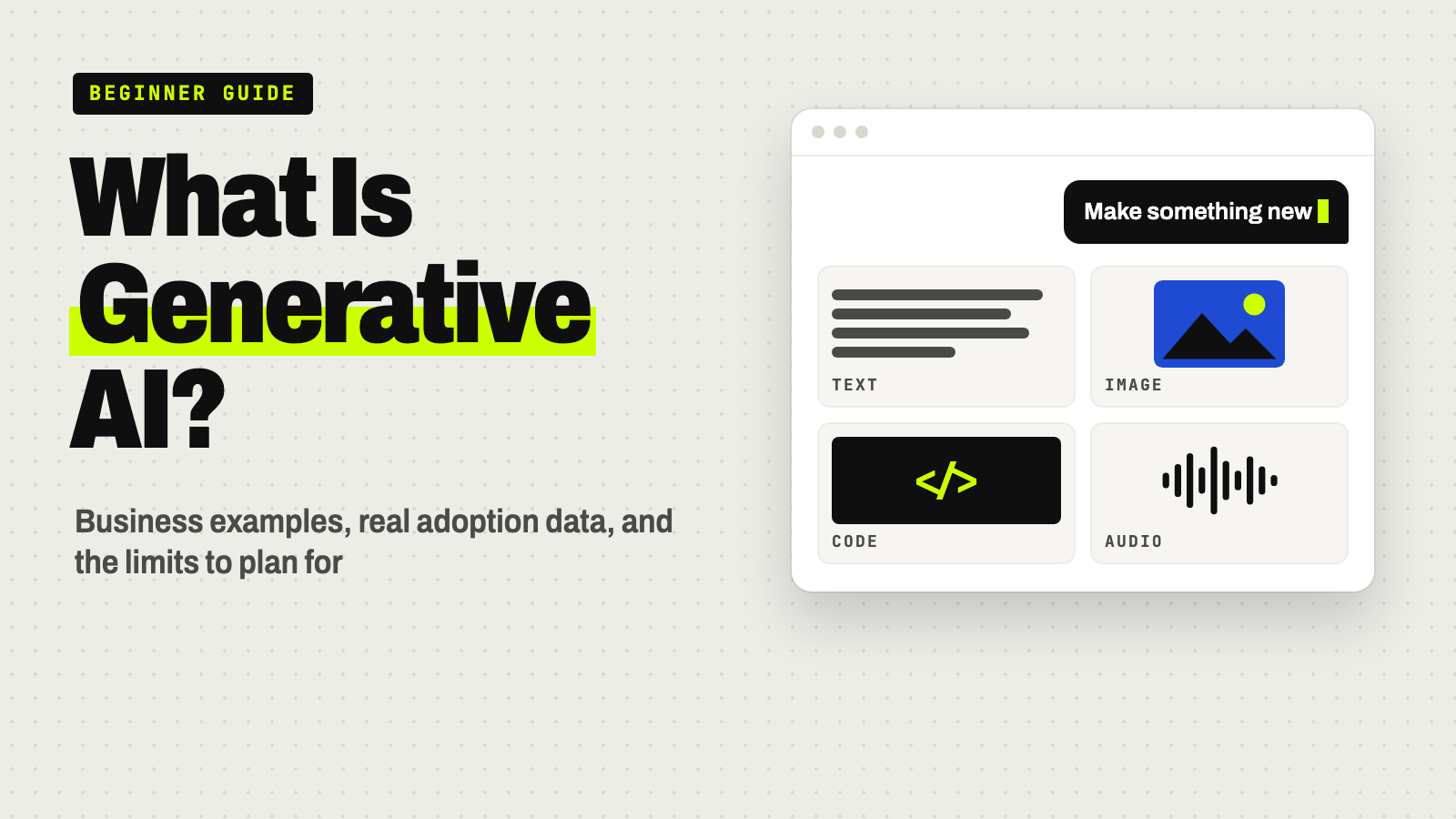
Generative AI tools — ChatGPT, Gemini, Claude, Copilot, and similar assistants — are built on large language models (LLMs). These are systems trained on large amounts of text and code so they can interpret a request written in plain English and generate a response in kind.
For data analysis, that means you can type a question like “which product had the lowest profit margin last month?” instead of building a pivot table or writing a formula. The AI reads your spreadsheet, identifies the relevant columns, performs the calculation, and explains the result in sentences a non-spreadsheet-user can follow.
Here’s what’s actually new: the underlying arithmetic — revenue minus cost equals margin — hasn’t changed. What’s changed is the interface. You ask in natural language instead of writing =SUMIF() or building a chart by hand. This is sometimes called natural-language querying. In more technical database settings, it’s related to what’s known as text-to-SQL, where a model translates a question into a database query. For a small business working from a spreadsheet, the practical effect is simpler: faster first-draft analysis and plain-English explanations of what the numbers show.
For a broader look at how AI fits into everyday business analytics, see our guide to AI in business data analytics.
Generative analysis vs. forecasting
These are two different jobs. Mixing them up is where businesses get into trouble.
| Generative analysis | Predictive forecasting | |
|---|---|---|
| What it does | Describes and explains data you already have | Estimates what hasn’t happened yet |
| Example question | “Which product has the lowest margin this month?” | “What will sales look like next quarter?” |
| Underlying method | Reading, summarizing, and calculating from existing rows | Statistical modeling, trend extrapolation, assumptions about the future |
| Risk level | Lower — the answer can be checked against the source data | Higher — depends on assumptions that may not hold |
Asking a chatbot to “explain this spreadsheet” is generative analysis: the data already exists, and the AI summarizes or calculates from it. Asking it to “predict next quarter’s revenue” is forecasting, a statistical task that depends on historical patterns and assumptions about the future that may not hold. Treat forecasting output from a general-purpose chatbot with extra skepticism, and never present it as a guarantee of future results.
Step 1Prepare a clean CSV file
Before you ask an AI anything, give it data it can actually read. Most spreadsheet problems for AI tools come from formatting, not the AI itself. A few rules make a big difference for AI spreadsheet analysis:
- One header row. The first row should contain column names only — no titles, no merged cells above it.
- Consistent date format. Pick one format — such as YYYY-MM-DD, the ISO 8601 standard — and use it in every row.
- No embedded totals. Don’t bury a “Total” row in the middle of your data; it will get counted as a regular transaction.
- No merged cells. Merged cells often break how AI tools and spreadsheet software parse rows.
- One unit system per column. Don’t mix units sold with units returned in the same column.
- Meaningful column names. “Units,” “Revenue,” and “Cost” are self-explanatory. “Col3” is not. Microsoft’s guidance for Copilot in Power BI makes the same recommendation: unique, descriptive field names help the AI pick the right column.
Exporting to a plain CSV (comma-separated values) file, rather than sharing a formatted Excel workbook, usually produces cleaner results, since CSV strips out formatting quirks that can confuse a parser.
Step 2Define one specific business question
“Analyze my data” is too vague for a useful answer. The AI doesn’t know what you care about, so it guesses, and you get a generic summary.
A scoped question works much better: “Which product has the lowest profit margin, and how much does it differ from our best-performing product?” That’s specific enough for the AI to calculate a clear answer — and for you to verify it.
The rest of this walkthrough shows exactly how to analyze business data with AI, using one scoped question and a small synthetic dataset.
The worked example dataset
Editorial note: this dataset is entirely fictional. It represents a small housewares shop selling four products over four weeks. Every figure is illustrative and does not reflect any real company’s sales, costs, or margins.
| Date | Product | Units | Revenue | Cost |
|---|---|---|---|---|
| 2024-01-01 | Mug | 120 | $1,800 | $1,200 |
| 2024-01-01 | Tumbler | 80 | $2,000 | $1,360 |
| 2024-01-01 | Water Bottle | 60 | $1,500 | $900 |
| 2024-01-01 | Tote Bag | 40 | $800 | $680 |
| 2024-01-08 | Mug | 110 | $1,650 | $1,100 |
| 2024-01-08 | Tumbler | 90 | $2,250 | $1,530 |
| 2024-01-08 | Water Bottle | 55 | $1,375 | $825 |
| 2024-01-08 | Tote Bag | 50 | $1,000 | $850 |
| 2024-01-15 | Mug | 130 | $1,950 | $1,300 |
| 2024-01-15 | Tumbler | 75 | $1,875 | $1,275 |
| 2024-01-15 | Water Bottle | 70 | $1,750 | $1,050 |
| 2024-01-15 | Tote Bag | 40 | $800 | $680 |
| 2024-01-22 | Mug | 100 | $1,500 | $1,000 |
| 2024-01-22 | Tumbler | 95 | $2,375 | $1,615 |
| 2024-01-22 | Water Bottle | 65 | $1,625 | $975 |
| 2024-01-22 | Tote Bag | 45 | $900 | $765 |
The business question: margin and sales mix
This walkthrough answers one question: Which product is dragging down overall margin, and should we shift sales mix toward another product?
Step 3Ask AI to analyze the data
Upload or paste the CSV alongside these prompts into your chatbot of choice. Each one builds on the last.
Try this: prompt 1 — get an overview
Start with a sanity check of the whole file:
Here is a CSV of weekly sales by product (columns: date, product, units,
revenue, cost). Give me a plain-English summary: total units, total revenue,
total cost, and overall gross margin (revenue minus cost). Point out
anything unusual, like missing values, duplicate rows, or inconsistent
product names.
Try this: prompt 2 — break down margin by product
Then ask for the comparison you actually need:
Using the same data, calculate for each product: total revenue, total
cost, gross margin (revenue minus cost), and gross margin percentage
(margin divided by revenue). Rank the products from lowest margin
percentage to highest.
Try this: prompt 3 — force the AI to show its arithmetic
This is the one that matters most:
For the Tote Bag, show your exact arithmetic: list each weekly row, show
the sum of revenue, the sum of cost, the margin calculation (revenue
minus cost), and the margin percentage calculation (margin divided by
revenue). Do not skip any step.
Asking the AI to “show its work” doesn’t guarantee a correct answer, but it gives you something concrete to check — which is the point of the next step.
Step 4Check the AI’s calculations independently
Illustrative AI output (synthetic, for demonstration only): suppose the assistant reports that the Tote Bag has total revenue of $3,500, total cost of $2,975, a gross margin of $525, and a gross margin percentage of 15%.
Here’s the manual check, using the same dataset:
- Revenue: $800 + $1,000 + $800 + $900 = $3,500
- Cost: $680 + $850 + $680 + $765 = $2,975
- Margin: $3,500 − $2,975 = $525
- Margin %: $525 ÷ $3,500 = 15.0%
The manual check matches the AI’s reported figures in this example. Now compare the Tote Bag to the Water Bottle using the same method:
- Water Bottle revenue: $1,500 + $1,375 + $1,750 + $1,625 = $6,250
- Water Bottle cost: $900 + $825 + $1,050 + $975 = $3,750
- Water Bottle margin: $6,250 − $3,750 = $2,500
- Water Bottle margin %: $2,500 ÷ $6,250 = 40.0%
Across all four products, total revenue is $25,150 and total cost is $17,105, for a blended margin of $8,045, or about 32%. The Tote Bag’s 15% margin sits well below that blended average, while the Water Bottle’s 40% margin sits well above it.
This hand-check takes a few minutes with a calculator. Do it every time before a number drives a real decision — don’t skip it because the AI’s explanation sounded confident.
Step 5Turn the findings into actions
A verified number is only useful if someone acts on it. Turn the finding into a short action table rather than leaving it as a chat response.
| Finding | Recommended action | Who should review it |
|---|---|---|
| Tote Bag margin (15%) is well below the blended average (32%) | Review Tote Bag pricing or supplier cost; consider reducing promotional emphasis on it | Owner or pricing lead |
| Water Bottle margin (40%) is the strongest performer | Test shifting marketing spend or shelf placement toward Water Bottle | Marketing or merchandising lead |
| Mug and Tumbler sit near the blended average | No immediate change; monitor next month | Whoever owns monthly sales review |
Where generative AI is most useful for everyday analysis
Used this way, generative AI is realistically good at:
- Natural-language access for people who don’t know spreadsheet formulas or SQL.
- Faster first-draft analysis — a rough margin breakdown in minutes instead of building a pivot table from scratch.
- Plain-English explanations of trends, so a non-analyst on the team can understand what a chart or table shows.
It is not realistically good at making the final call for you. Mainstream business intelligence platforms have been adding natural-language questions and AI-assisted explanations: Tableau, Microsoft Power BI, Google Looker, and Qlik all document features for asking questions about your data in plain language. That suggests this kind of capability is becoming standard across the analytics market rather than a feature unique to one chatbot. Feature sets change quickly, so check each vendor’s current documentation directly if you’re comparing platforms.
The right tool for your business depends on where your data lives. A general-purpose chatbot is often enough for a standalone spreadsheet. A built-in copilot may fit better if your data lives in a connected database or BI platform. Our guide to using AI to generate business reports compares the chat tools and BI options side by side.
Missing data, privacy, and wrong answers
Handling missing or inconsistent data
Blank cells, duplicate rows, and inconsistent product names (say, “Tote Bag” in one row and “tote bag ” with a trailing space in another) are common in real spreadsheets. An AI tool may silently guess how to handle them — treating a blank as zero, or failing to merge two spellings of the same product — without telling you it made an assumption. Ask explicitly: “Are there any blank values, duplicates, or inconsistent labels in this data?” before trusting a summary.
What not to upload — privacy basics
Watch out
Avoid uploading customer personal information, payment or account details, employee records, or anything under a confidentiality agreement to a free or general-purpose chatbot.
These tools may store or use conversation data depending on the provider’s settings and terms. OpenAI, for example, may use conversations from personal ChatGPT accounts to improve its models unless you turn that off in its data controls. If you need to analyze sensitive data with AI, look into an enterprise or private deployment with contractual data protections, or strip identifying details before uploading. When in doubt, consult a qualified IT or legal professional about your specific obligations, since privacy and data-handling rules vary by industry and state. Our guide to starting with AI at work covers setting simple data ground rules for your team.
When the AI’s explanation is wrong
A fluent, confident answer is not proof of a correct one. This is sometimes called hallucination; NIST’s generative AI risk profile calls it confabulation — confidently stated but erroneous or false content. A few concrete tells:
- The numbers don’t add up when you check them by hand (as in Step 4).
- The AI references a column name that doesn’t exist in your file.
- Two parts of the same response contradict each other — for example, a product total that doesn’t match the grand total.
If you spot any of these, ask the AI to recheck its work line by line, and verify the correction yourself. Don’t assume the second answer is right just because it sounds more confident.
Checklist before you trust an analysis
- Source data is clean: one header row, consistent formats, no embedded totals.
- You asked one specific, scoped question — not “analyze everything.”
- You manually spot-checked at least one key number (revenue, cost, or margin).
- No customer personal information, payment data, or confidential records were uploaded.
- A second person reviewed the finding before it changed a pricing, staffing, or inventory decision.
- You kept a human in the loop for anything with real financial consequences.
Your next step
Try it on your lowest-stakes question first
- Pick one of your own spreadsheets and clean it using Step 1.
- Ask one question you can check by hand in a few minutes — not a number that will immediately change a budget.
- Run the three prompts, then verify at least one key figure yourself.
- Only then try a question that would drive a real decision.
Keep going
Business Prompted publishes practical guides, tool reviews, and workflows for people who run businesses. Explore more at businessprompted.com.
Common questions
How can generative AI be used in data analytics?
It can answer natural-language questions about a spreadsheet or dashboard, draft calculations or queries, summarize trends in plain English, and turn a chart into a written explanation. It augments analysis — it doesn’t replace the need for someone to check the result.
What is an example of generative AI in a business context?
One example: asking an AI assistant to break down gross margin by product from a sales spreadsheet, then checking the math by hand before acting on it. Other common examples include drafting emails, writing first-pass code, and summarizing meeting notes.
Can I trust AI-generated calculations or formulas?
Not without a manual spot-check. Recompute at least one key figure — revenue, cost, or margin — from the source data yourself before using the AI’s number to make a decision.
Does generative AI replace a data analyst or bookkeeper?
Usually not for judgment-based or regulated work. It speeds up first drafts and plain-English explanations, but accuracy review and business judgment still require a qualified person, especially for anything tax- or compliance-related.
Does generative AI predict future sales or trends?
Not reliably on its own. Generative analysis explains data that already exists; predicting future sales is forecasting, a statistical task with its own assumptions and risks. Don’t treat a chatbot’s prediction as a guarantee.
What data should I avoid uploading to an AI tool?
Customer personal information, payment details, employee records, and anything under a confidentiality agreement — unless you’re using a vetted enterprise or private tool with contractual data protections.
Which AI tool is best for analyzing a spreadsheet?
There isn’t one universal answer. General-purpose assistants (ChatGPT, Gemini, Claude) work well for spreadsheet files you upload directly. BI-embedded copilots (in Power BI, Tableau, Looker) work better when your data lives in a connected database rather than a standalone file. The right choice depends on where your data already lives.
Sources & further reading
- Microsoft Learn — Ask data questions with Copilot in Power BI
- Tableau — Ask questions and discover insights in Tableau Pulse
- Google Cloud — Conversational Analytics in Looker
- Qlik — Qlik Answers
- OpenAI — Data controls in ChatGPT
- NIST — AI 600-1, Generative AI Profile
- RFC Editor — RFC 4180 (CSV format)
- ISO — ISO 8601 date and time format
A note on risk: Using digital tools and AI carries risk, and AI-generated outputs can be incomplete, outdated, or wrong. This article is educational and not individualized financial, tax, or legal advice. Consult a qualified professional for decisions specific to your business.
Business Prompted guides are written for practical use and checked against the sources listed above. Read our editorial policy.